Installing Node.js and Grunt on macOS
Outdated: This post is preserved for reference and may no longer reflect current tools or services. For a newer approach, see my npm build tools gist.
This tutorial focuses on installing Node.js and provides resources for setting up and using Grunt.
Step 1: Install Node.js
If you installed Node.js with Homebrew, you can skip ahead to the proxy or Grunt steps.
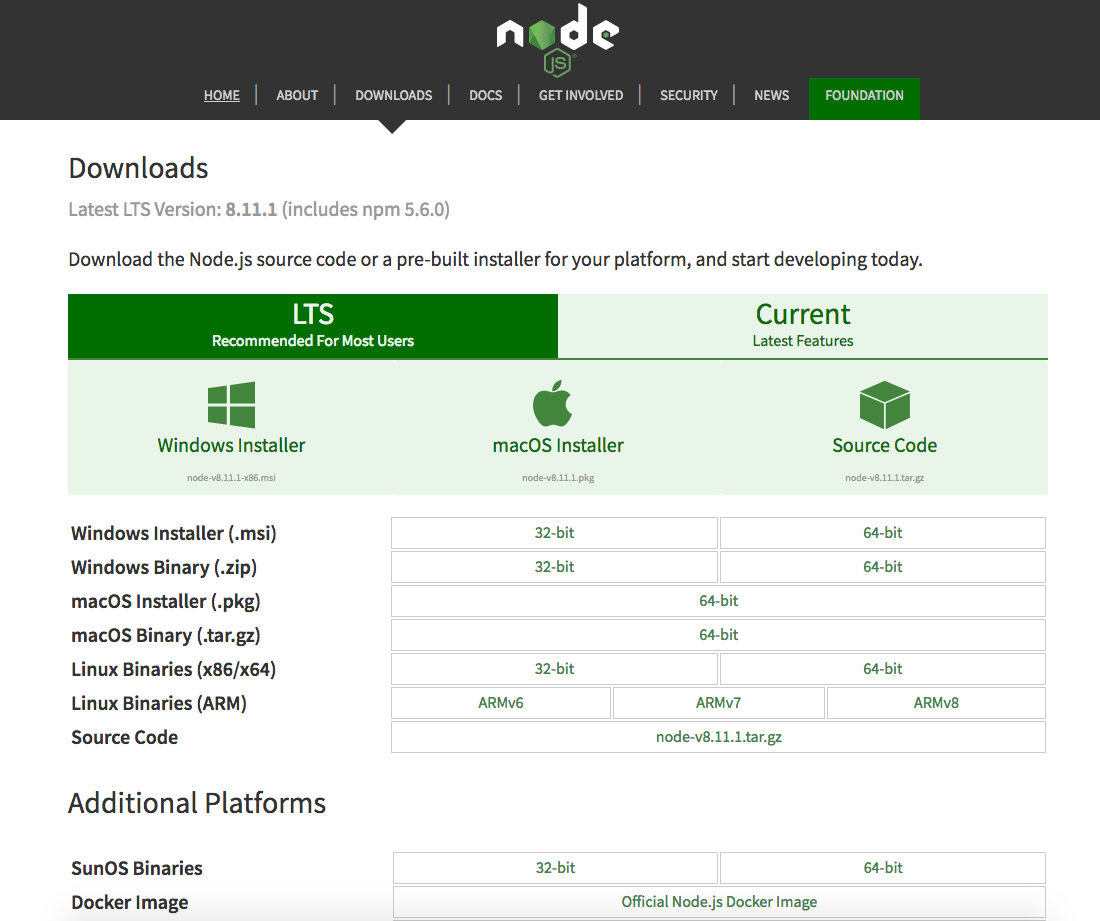
Otherwise, download the latest stable binary from nodejs.org. For production servers, it is generally best to use the latest stable version. The default installer settings should be fine.
Verify your path as shown in the installer message. Make sure that /usr/local/bin is in your $PATH.
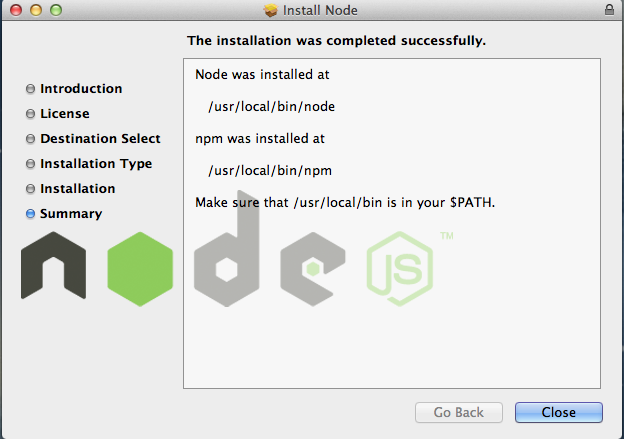
Note: I found this Stack Overflow post useful: Set environment variables: bash profile. Be sure to check the installer message in case the path differs between versions. In my case, the path was already set correctly.
Step 2: Use a proxy with Node.js
If you need to use a proxy with Node.js, you can set it using the commands below. This section was based on How to set up Node.js and npm behind a corporate web proxy.
npm config set proxy http://proxy.example.org:8080
npm config set https-proxy http://proxy.example.org:8080
Step 3: Grunt setup
Install Grunt globally
This section uses Grunt 0.4.x.
Grunt is installed through npm, the Node Package Manager. To install Grunt from npm, you will need to use the command line.
Type the following command into the terminal:
npm install -g grunt-cli
Create a package.json file
Go into your project directory and run the command below. This will generate a package.json file using the default settings, which you can edit afterward.
npm init -y
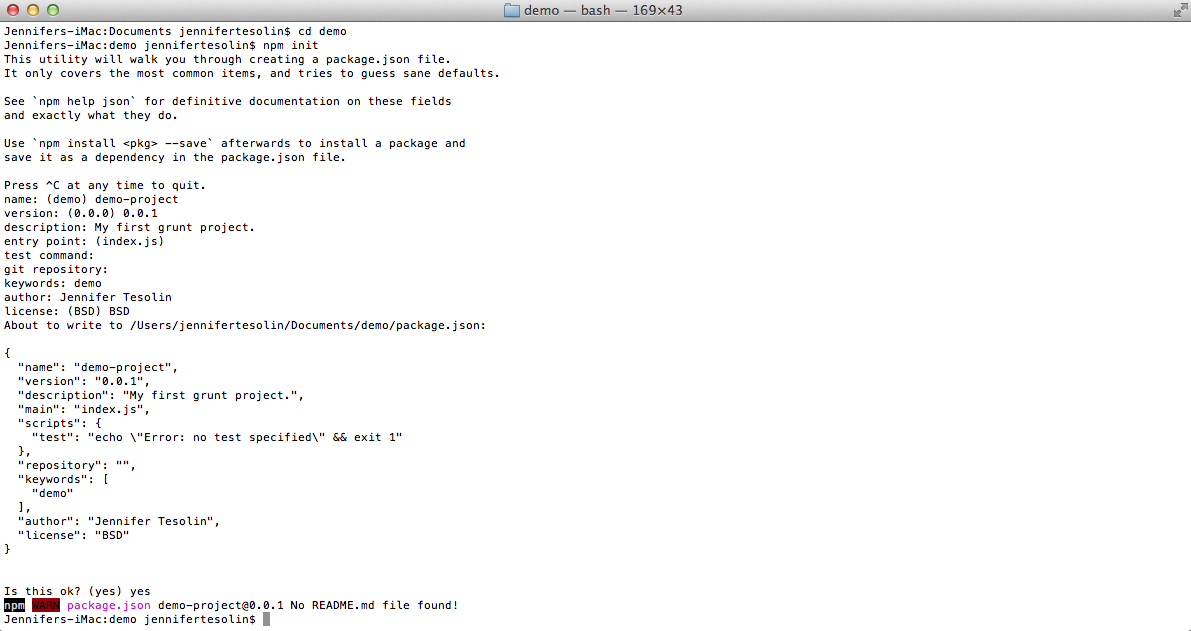
Open your preferred text editor and update the package.json file to fit your project:
{
  "name": "demo-project",
  "version": "0.0.1",
  "author": "Jennifer Tesolin"
}
Now, using the terminal, run the following command in your project directory:
npm install grunt --save-dev
This will install Grunt locally in your project. If you open package.json, you will see a new section added:
"devDependencies": {
    "grunt": "~0.4.1"
}
Associate plugins with Grunt and package.json
Run the command below to install the plugin through npm:
npm install grunt-contrib --save-dev
Create your Grunt file
In your text editor, create a file called Gruntfile.js and save it in your project directory. A sample copy is below:
module.exports = function(grunt) {

    // Project configuration.
    grunt.initConfig({

    });

    // Load call for plugins

    // Default task(s).

};
Sample Grunt tasks
The various commands you can run in your terminal are as follows:
grunt images: makes your images web-ready and creates sizes for different screens.grunt css: converts Sass to CSS, then runs a linter, PostCSS, and concatenates your CSS files.grunt jscript: runs JSHint.grunt dev: runs thejscriptandcsstasks, then openswatchto monitor changes.grunt build: runs everything and creates a production-ready build.
module.exports = function(grunt) {

  'use strict';

  // Project configuration.
  grunt.initConfig({
    pkg: grunt.file.readJSON('package.json'),
    sass: {
      dist: {
        options: {
          style: 'expanded', /**human readable */
          sourcemap: 'none',
        },
        files: {
          'css/style.css': 'sass/style.scss'
        }
      }
    },
    csslint: {
        strict: {
            src: ['css/style.css']
        },
        lax: {
            options: {
                csslintrc: '.csslintrc' //just check for css errors that would stop code
            },
            src: ['css/style.css']
        }
    },
    concat: {
      css: {
          src: ['node_modules/normalize.css/normalize.css', 'css/style.css'],
          dest: 'css/style.css'
      }
    },
    postcss: {
      options: {
        processors: [
          require('pixrem')(),
          require('autoprefixer')({browsers: 'last 2 versions'})
        ]
      },
      dist: {
        src: 'css/style.css',
        dest: 'css/style.css'
      }

    },
    cssmin : {
        css:{
            src: 'css/style.css',
            dest: 'css/style.min.css'
        }
    },
    uglify: {
      options: {
        banner: '/*\n <%= pkg.name %> <%= grunt.template.today("yyyy-mm-dd") %> \n*/\n'
      },
      build: {
        files: {
          'js/scripts.min.js': ['js/*.js', '!js/*.min.js']
        }
      }
    },
    jshint: {
      files: ['Gruntfile.js', 'js/*.js', '!js/*.min.js'],
      options: {
        jshintrc: '.jshintrc',
        ignores: '.jshintignore'
      },
    },
    htmlmin: {                                     // Task
      dist: {                                      // Target
        options: {                                 // Target options
          removeComments: true,
          collapseWhitespace: true
        },
        files: [
          {
            expand: true,     // Enable dynamic expansion.
            cwd: 'src/',      // Src matches are relative to this path.
            src: ['**/*.html'], // Actual pattern(s) to match.
            dest: 'dist/',   // Destination path prefix.
          },
        ],
      }
    },

    imagemin: {
        png: {
          options: {
            optimizationLevel: 7
          },
          files: [
            {
              expand: true,
              cwd: 'img/',
              src: ['**/*.png'],
              dest: 'img/compressed/',
              ext: '.png'
            }
          ]
        },
        jpg: {
          options: {
            progressive: true
          },
          files: [
            {
              expand: true,
              cwd: 'img/',
              src: ['**/*.jpg'],
              dest: 'img/compressed/',
              ext: '.jpg'
            }
          ]
        }
      },
    responsive_images: {
      myTask: {
        options: {
          sizes: [{
              name: 'header-320',
              width: 320
            },
            {
              name: 'header-640',
              width: 640
            },
            {
              name: 'header-768',
              width: 768
            },
            {
              name: 'header-1024',
              width: 1024
            },
            {
              name: 'header-1366',
              width: 1366
            },
            {
              name: 'header-1920',
              width: 1920
            },
            {
              name: "header-2560",
              width: 2560
          }]
        },
        files: [{
          expand: true,
          cwd: 'img/',
          src: ['**.{jpg,gif,png}'],
          dest: 'img/resize'
        }]
      }
  },
  clean: {
    build: {
      src: [ 'build' ]
    },
    stylesheets: {
      src: [ 'build/**/*.css', '!build/application.css' ]
    },
    scripts: {
      src: [ 'build/**/*.js', '!build/application.js' ]
    },
    images:{
      src: [ 'img/compressed/**/', 'img/resize/**/']
    }
  },
  watch: {
    gruntfile: {
      files: 'Gruntfile.js',
      tasks: ['jshint'],
    },
    css: {
      files: ['sass/*.scss'],
      tasks: ['sass', 'csslint:lax', 'postcss', 'concat:css']
    },
    js: {
      files: ['js/*.js','!js/*.min.js'],
      tasks: ['jshint'/*,'concat:js','uglify'*/]
    }
  },
  copy: {
      build: {
        cwd: 'source',
        src: [ '**' ],
        dest: 'build',
        expand: true
      },
    }

  }); //end grunt config

  grunt.loadNpmTasks('grunt-contrib-sass');
  grunt.loadNpmTasks('grunt-postcss');
  grunt.loadNpmTasks('grunt-contrib-uglify');
  grunt.loadNpmTasks('grunt-contrib-concat');
  grunt.loadNpmTasks('grunt-contrib-htmlmin');
  grunt.loadNpmTasks('grunt-contrib-jshint');
  grunt.loadNpmTasks('grunt-contrib-csslint');
  grunt.loadNpmTasks('grunt-contrib-cssmin');
  grunt.loadNpmTasks('grunt-contrib-imagemin');
  grunt.loadNpmTasks('grunt-responsive-images');
  grunt.loadNpmTasks('grunt-contrib-watch');
  grunt.loadNpmTasks('grunt-contrib-clean');
  grunt.loadNpmTasks('grunt-contrib-copy');

  grunt.registerTask('images', ['clean:images', 'responsive_images','imagemin']);
  grunt.registerTask('css', ['sass', 'csslint:lax', 'postcss','concat:css']);
  grunt.registerTask('jscript', ['jshint']);
  grunt.registerTask('dev', ['jscript', 'css','watch']);
  grunt.registerTask('build', ['clean', 'copy']);

};
You can also compare this with my later Grunt and package file gist.
Reinstall devDependencies or dependencies
With the newer package-lock.json file, npm update may not install the latest version if the update is a major one. Use the command below to pick up the latest package version.
npm uninstall jshint
npm cache clean -f
npm install --save-dev jshint
Resources
- Grunt: Getting started documentation
- Grunt: Installing the CLI
- Preparing a new Grunt package
- Grunt’s sample Gruntfile
- Tuts+ Grunt tutorials
- A simple guide to getting started with Grunt
- Google Chrome Grunt DevTools
- A tutorial for getting started with Grunt
- Meet Grunt: The Build Tool for JavaScript
- DailyJS: Backbone.js tutorial: Build environment
- Later Grunt and package file example